

To make changes to your site - like updating text, images, or blog posts - you’ll log into something called the Webflow Editor. It’s simple, safe, and designed for non-developers.
This guide shows you how to get in, where to go, and what to do if you get stuck.
Step 1: Use your Editor link
We’ll have sent you a unique Webflow Editor link - usually something like:
https://yourwebsite.com?edit
Clicking this link takes you to your live site, with a little Webflow toolbar over the top.
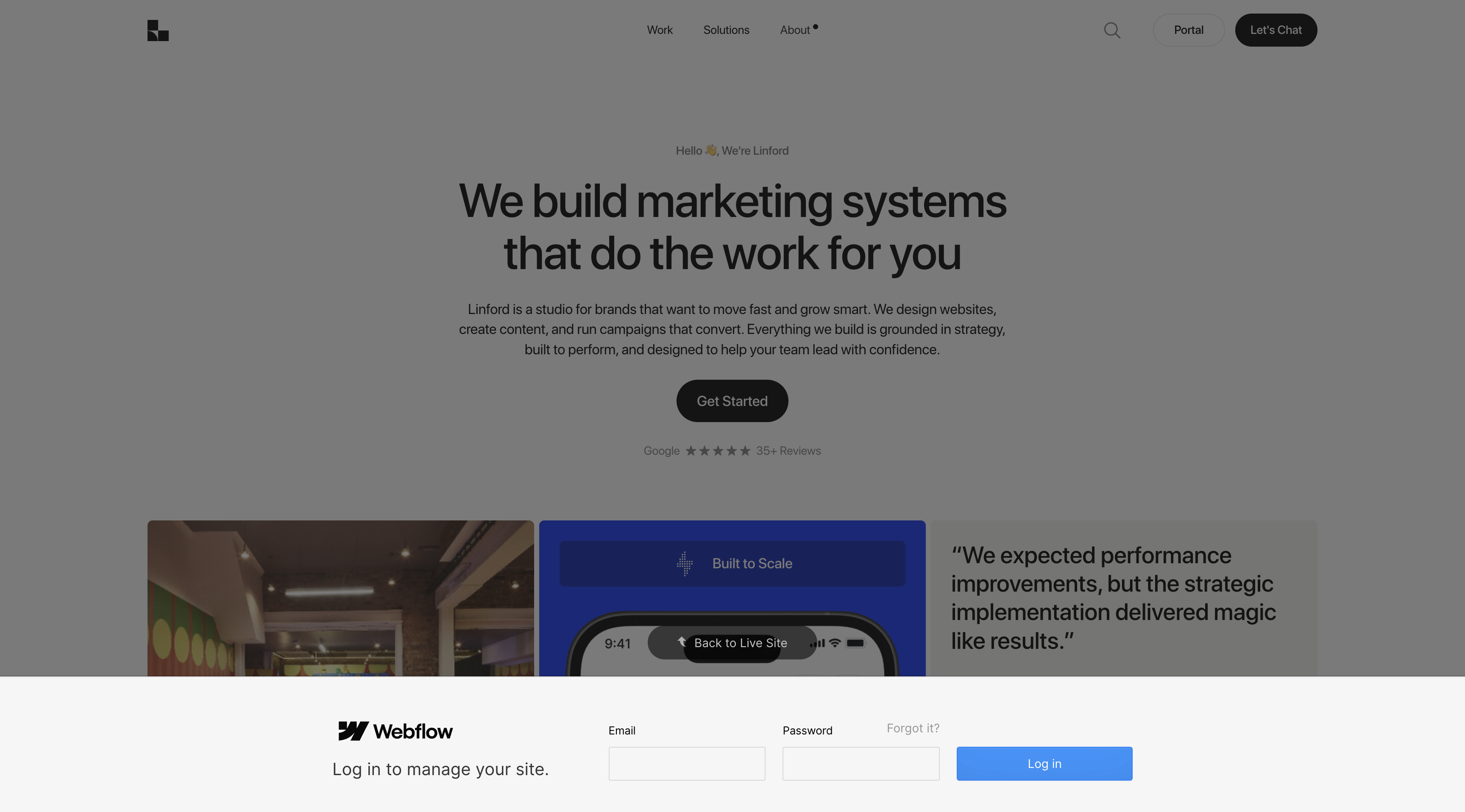
Step 2: Log in with your email
You’ll be asked to log in. Use the same email you shared with us when we built the site.
If it’s your first time logging in, Webflow will prompt you to set a password.
Step 3: You’re in the Editor
Once logged in, you’ll see your site as normal - but with an Editor bar at the top and clickable blue highlights around editable content. This is where you’ll make changes.
Troubleshooting
Forgot your login? Visit https://webflow.com/dashboard and try resetting your password.
No Editor access? Ask us to resend your invite. We can reissue access in seconds.
Logging into the wrong account? Try a private browser window, or clear cookies for Webflow.